
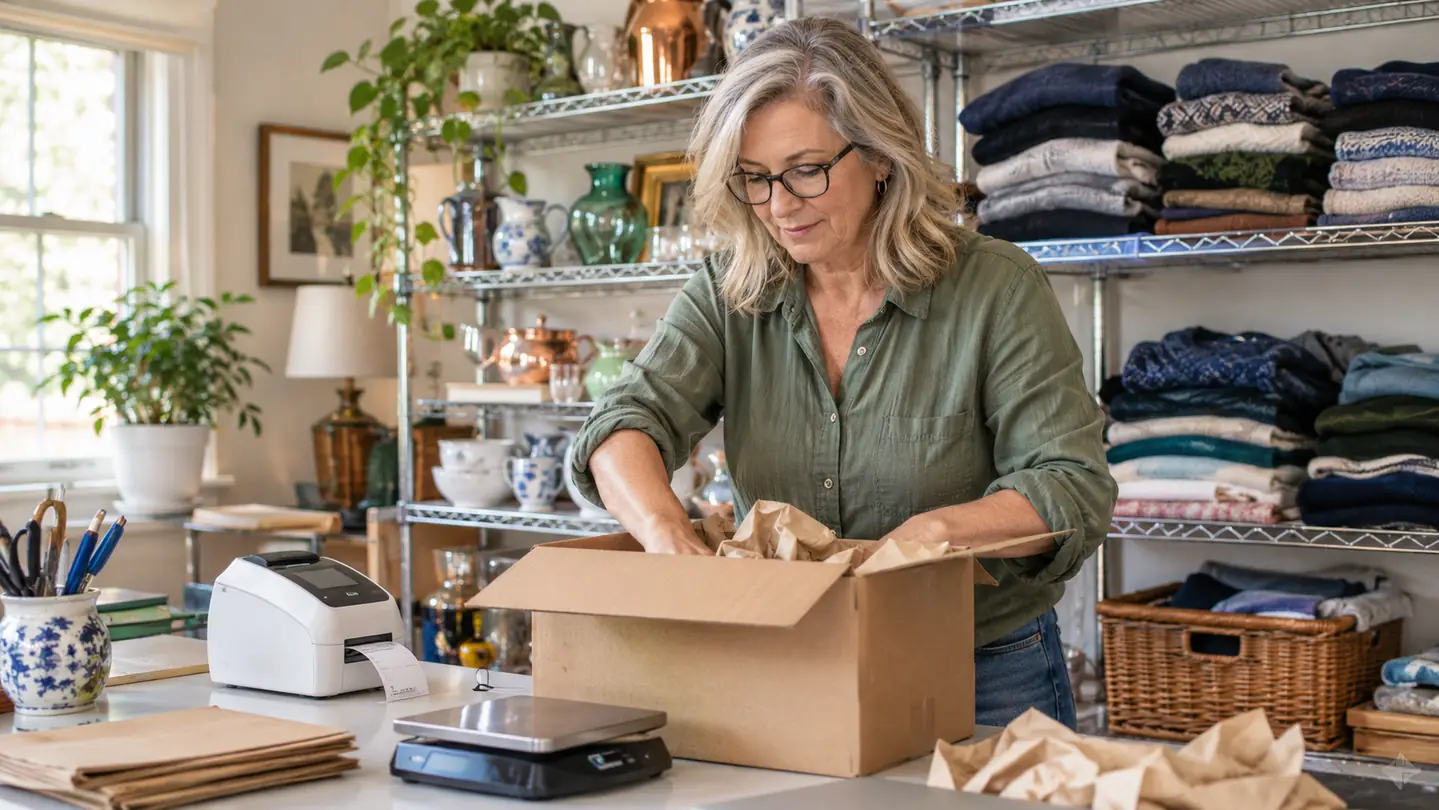
I spent my first two years of reselling printing shipping labels on an inkjet, cutting them out with scissors, and taping them onto boxes. It worked. It also ate twenty minutes out of every packing morning, left a roll of half peeled label sheets curling up on the shelf above my folding table, and produced at least one label a month that the scanner at the post office refused to read. I did not think of it as a problem. I thought of it as part of the job.
The fix turned out to be a thermal printer, and the part nobody explains clearly enough is the bridge between a label sitting on your phone screen and a label stuck to a box. The JADENS Bluetooth Thermal Shipping Label Printer does that job, and the setup is not difficult. It is just specific. There are about five places where people get stuck, decide the printer is broken, and go back to the scissors. Here is the whole sequence in the order I actually run it, at a folding table in a spare bedroom in Dayton with a wire shelf of inventory behind me and a cup of coffee going cold on the scale.
The end of scissors, tape, and curled up label sheets
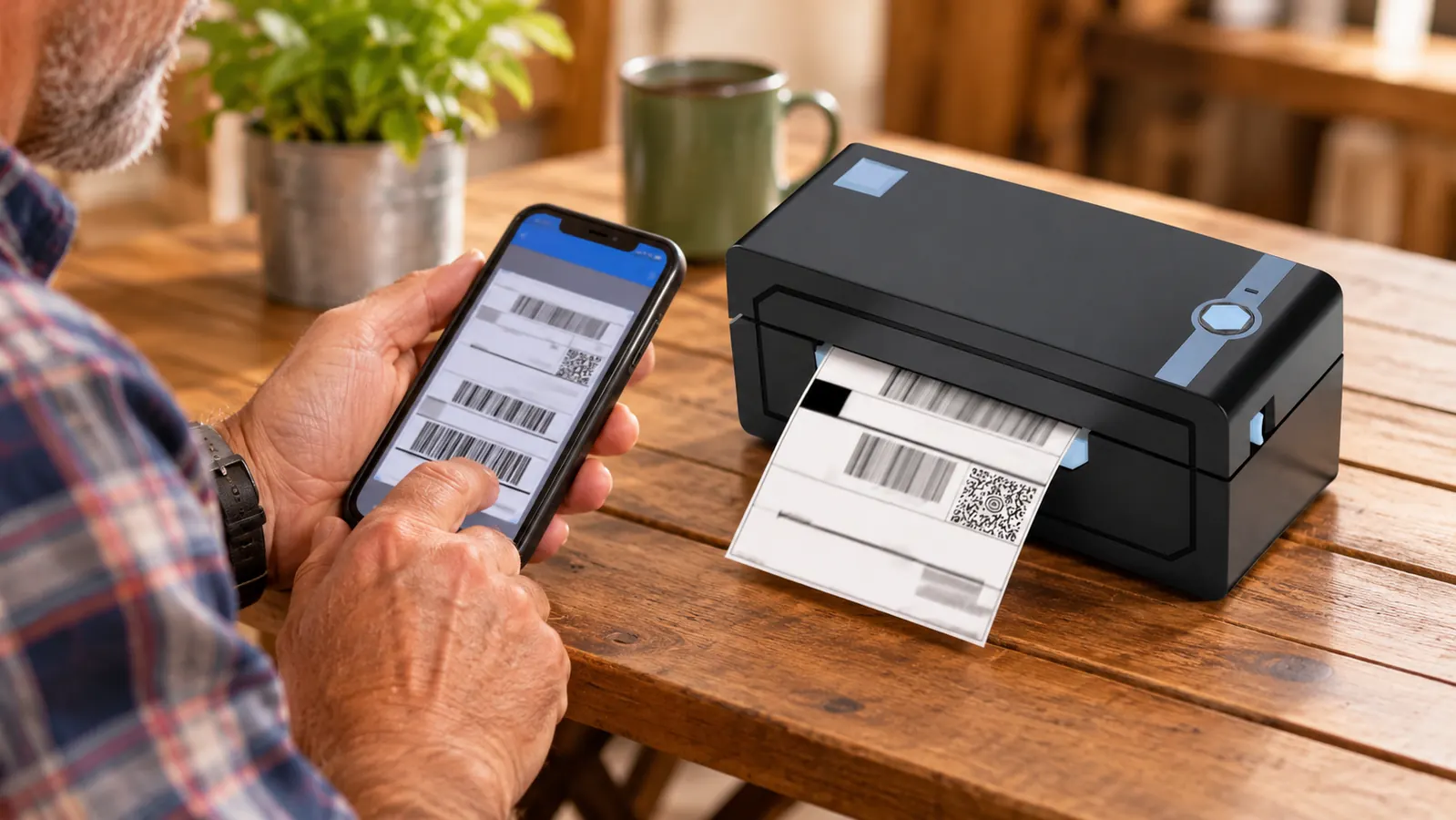
JADENS Bluetooth Thermal Shipping Label Printer. Takes labels from 1.57 to 4.1 inches wide, prints at 203 x 203 DPI, connects over Bluetooth or USB. Pair it once and print from the phone you already have in your hand.
Amazon Check Today's Price on Amazon →Step 1: Confirm Your Label Size Before You Change a Single Setting
Before anything else, measure the labels you already own. Thermal printers are built around a width range, and this one accepts labels from 1.57 inches wide up to 4.1 inches wide. The standard 4x6 shipping label that eBay, Poshmark and Mercari all accept falls comfortably inside that range, which is why this printer is a sensible buy for a reseller and a poor choice for someone who wants to print receipts, packing slips and the occasional poster. It prints labels. That is the entire job, and it does the job well.
The size question matters more than it sounds because label stock comes in two physical formats. Rolls are wound around a cardboard core and feed from a holder. Fan folded stacks are zigzag sheets that sit behind the printer and pull in flat. Both work here. I started with rolls because they take up less shelf space and I have exactly one shelf. If you sell mostly small items and ship in poly mailers, a roll is tidier. If you ship twenty or thirty parcels in a sitting, the fan folded stack means you are not stopping to reload.
Two things will burn you. First, a 4x6 label is the outside edge of what most carriers want, so if you order something marked 4x6.5 and assume it is close enough, the barcode can run off the edge of the stock and that label is scrap. Second, the gap between labels matters. Cheap rolls with a sloppy gap feed two labels for one print job, and you spend ten minutes peeling and reprinting. Buy stock from a seller who states the gap in the listing. I learned that one after a roll that produced three double feeds in a single morning.
Step 2: Give the Printer a Real Home on the Table
The printer measures roughly 9 inches wide, 6 inches deep and 6 inches tall. That is small enough to live permanently on the folding table next to your scale without crowding the space where you actually wrap things. Permanently is the operative word. Mine spent its first week on a shelf, got moved every time I needed to get to the tape, and fed crooked every single time until I stopped moving it. A thermal printer pulls the label stock through itself, and any drag on the roll changes how the label sits under the print head.
Set it on a flat, hard surface. Not on a stack of poly mailers, not hanging off the edge where a sleeve can catch the roll, not in front of the shelf you need to reach into. I put mine on the left side of the table with the stock feeding in from behind it, and the labels went through straight from that day on. The wire shelf stays behind me, the printer stays put, and the table stays clear enough to wrap a bowl without knocking anything over.
Then load the stock. Feed the first label into the slot until it catches, close the top, and let the printer pull it through. If it grinds or the label goes in at an angle, stop and start over rather than letting it jam. A jammed thermal label is a wasted label, and yanking a stuck label backward out of the mechanism is how people scratch a print head and then wonder why every label has a white stripe down the middle.
Step 3: Pair the Phone Once, and Only Once
Here is the part where the product listing is more honest than most resellers are. On Windows 8 and later and on Mac, you can print over Bluetooth. On Android and iOS, you do not print through your phone's own built in Bluetooth print menu. You go through JADENS's own connection step instead. That is not a defect. It is how these compact thermal printers work, and it is the reason a certain number of buyers leave a review saying the printer will not connect. They are trying to print from the wrong menu.
Once it is paired, though, it stays paired. I set mine up in the spring and have not touched the connection setting since. The printer wakes, the phone finds it, the label prints. If you would rather not deal with Bluetooth at all, the printer also takes a USB cable, and USB works with Windows 7 and newer and Mac OS 10.9 and newer. I keep a cable in the drawer for the odd week when Bluetooth decides to be difficult, and it has saved a shipping morning more than once.
One thing worth doing on day one: print a single label and scan the barcode with your own phone before you print twenty of them. It takes ten seconds. It saves the twenty minutes you would otherwise spend discovering that a setting was wrong on the entire batch, usually while standing in line at the counter with a cart of parcels and a growing suspicion that today is not your day.
Step 4: Check the Scale on Every Print, Not Just the First
This is the single most common reason a label will not scan, and it has nothing to do with the printer. Your phone and your computer both want to be helpful. When you send a label to print, they will shrink it to fit whatever page size they assume is loaded, or stretch it to fill the area. A barcode shrunk by fifteen percent is a barcode that a handheld scanner at the post office will reject, and the clerk will hand your parcel back to you with a look you will remember.
So before you hit print, look at the preview. The label should fill the preview edge to edge, with no white margin around it and no shrinking to make it fit. Set the scale to 100 percent or actual size, and turn off anything labeled fit to page or scale to fit. On a phone this usually lives in a small menu inside the share or print step, easy to miss the first time and easy to set once and forget forever. Do it on the first label of the morning and then check the preview anyway, because updates reset things.
The printer itself prints at 203 x 203 DPI. That sounds unimpressive beside a photo printer until you remember what a shipping label actually is. It is text and a barcode. 203 DPI is more resolution than any scanner needs, and the print comes out dark and crisp as long as the stock is clean and the head is not scratched. Nobody has ever returned a package because the address was not sharp enough. They return packages because the label would not scan.
Step 5: Print in a Batch, Then Peel and Stick in a Batch
Printing one label, walking it to the box, sticking it, walking back, finding the next order and printing again is slow, and worse, it breaks your attention. I run it in two passes now. First pass, print every label for the morning in one sitting. Second pass, peel and stick while I pack. The printer runs at up to 6.57 pages per minute, so a normal morning's labels are done before the coffee goes cold. Keep it powered between jobs so you are not waiting on it to reconnect for every order.
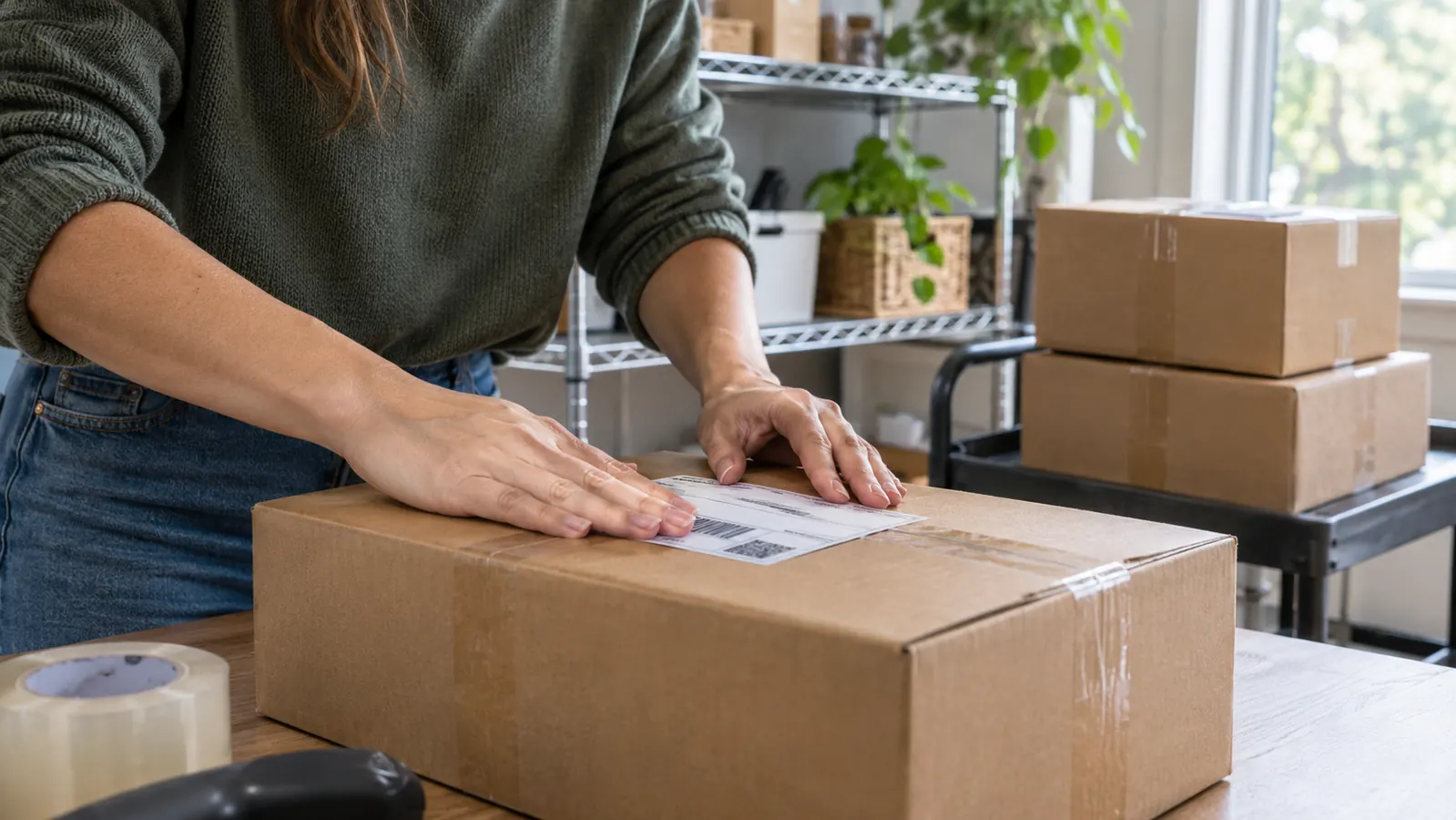
The peel and stick pass matters more than it sounds. Labels stick permanently to the first surface they touch, including to each other, and a label folded back on itself is garbage. I keep them face up in a shallow tray in the order I printed them and I stick them on the box last, after the tape is down and the weight is checked. If a label ends up on the wrong box, you are reprinting it and hoping the carrier sorts it out. A returned package costs you far more than a label does.
Gary carries the finished boxes out to the car in the morning, and the one rule I have is that nothing leaves the table without a label and a weight already on it. That rule exists because of a December afternoon when I handed him a stack of three boxes and one of them had no label on it at all. He got to the post office with it. I did not hear the end of it until February.
203 x 203 DPI is not a photo printer's resolution, and that is exactly the point. A barcode scanner does not need more, and it does need the label to be printed at actual size.
What Else Helps
A digital scale that reads in ounces and pounds is not optional equipment. Neither is a roll of clear tape wide enough to cover a box seam in one pass, and a supply of the right sized boxes so you are not cutting one down at the last minute. But the change that made the biggest difference in my packing room was a dedicated spot for outgoing parcels. I use a rolling cart, and when the finished boxes live in one place I stop hunting for the one I already sealed and set down somewhere behind the shelving.
Keep a spare roll of labels on the shelf. Running out mid batch is the kind of small failure that costs a whole morning, because you end up printing on plain paper and taping it to the box, and that is always the label that will not scan. I buy two rolls at a time now, which is nothoarder behavior, it is just the difference between a ten minute morning and a forty minute one.
A thermal printer has no ink to run out, which is the entire reason it makes sense for this job.
Clean the print head now and then. There is no ink cartridge to replace, which is the whole reason a thermal printer suits this work, but dust and adhesive residue build up on the head and show up as white streaks down the middle of a label. Printer off and cooled, a wipe with an alcohol swab, every couple of months, and it stays clean. It is the least glamorous maintenance in the world and it saves you a morning of reprints.
Finally, keep one small notebook or a note on your phone where you write down the weight and the box size for anything you ship more than once. A mug, a pair of boots, a stack of paperbacks. After six years I still weigh every parcel, but I no longer guess at which box a pair of boots needs, and that saves a trip back to the shelf every single time.
One pairing, then every label for the morning
JADENS Bluetooth Thermal Shipping Label Printer. Labels from 1.57 to 4.1 inches wide, 203 x 203 DPI, Bluetooth or USB. It has earned its spot on my folding table, and it is the reason the scissors live in a drawer now.
Amazon Check Today's Price on Amazon →